How to Choose a Photo
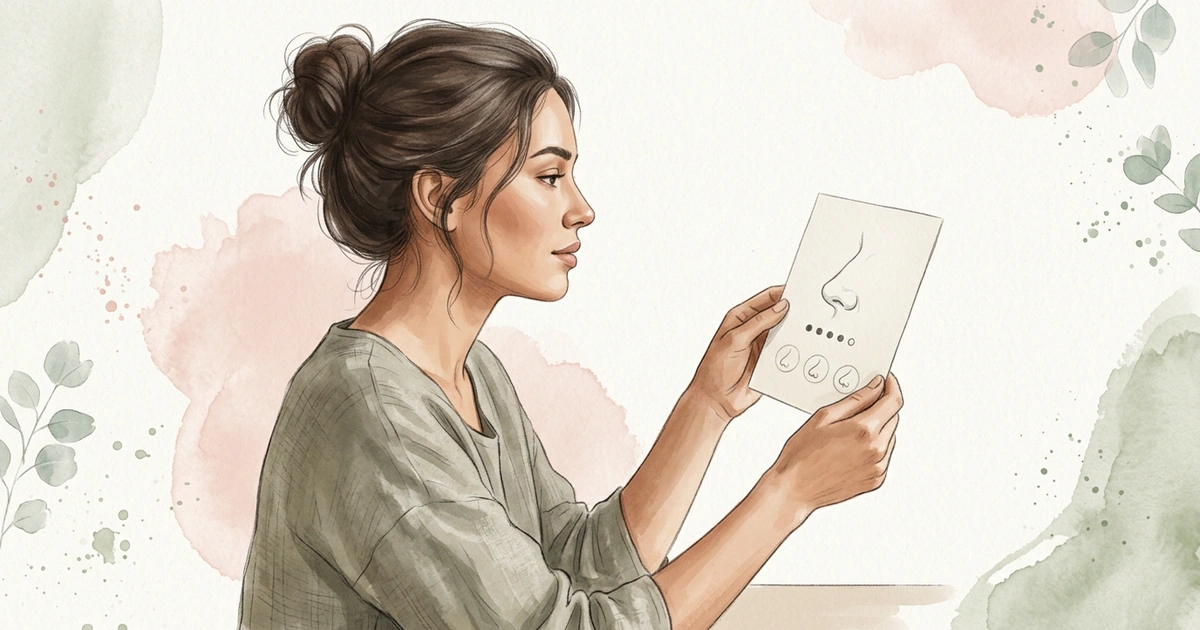
Your photo is the starting point for your nose job simulation. A clear photo with the recommended angle helps NoseChic create a nose simulation you can compare with your photo.
Written by Mia Hartley4 min readUpdated
The photo you start with decides most of what a simulation can show. A clear, well-lit photo at the right angle gives the simulation a true starting point; a dark or tilted one gives it a wrong one.
Here’s how to pick the right photo for your style, and what to check before you upload it.
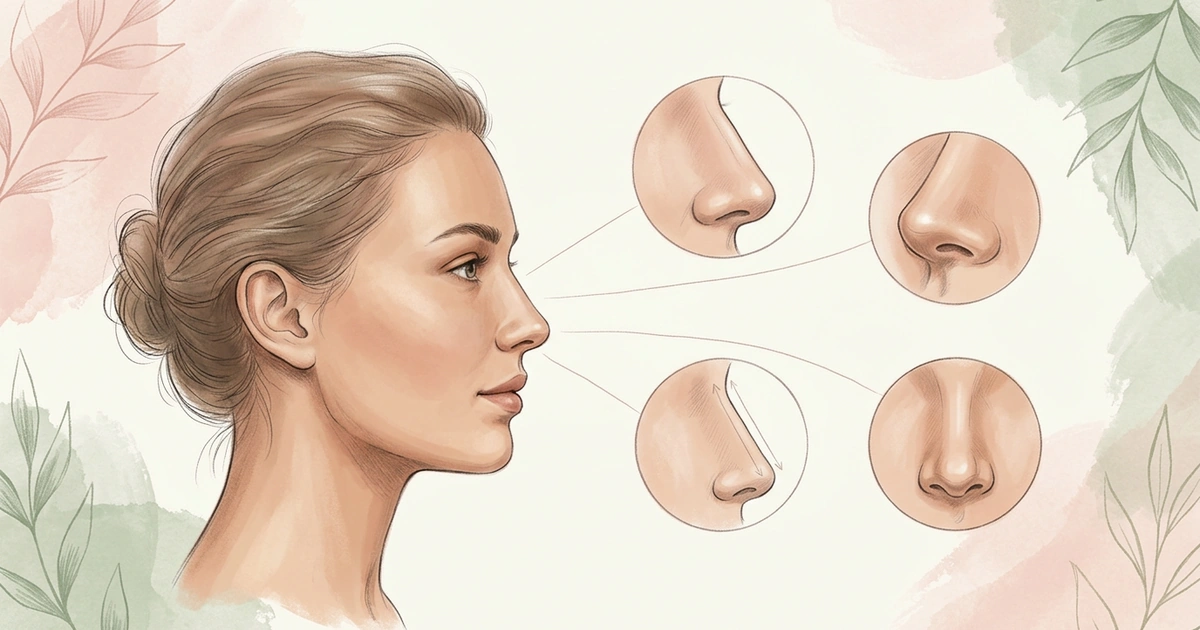
Different nose styles emphasize different features, so the recommended photo angle varies.
Follow the photo examples for your selected style
For Symmetric and Slim Bridge, the app recommends a front-facing photo. This makes the bridge and the position of the nose easier to see.
For Button, Upturned, Roman, Greek, Defined Tip, and Sloped, the app recommends a side or angled photo. Follow the app’s photo examples when choosing your photo.
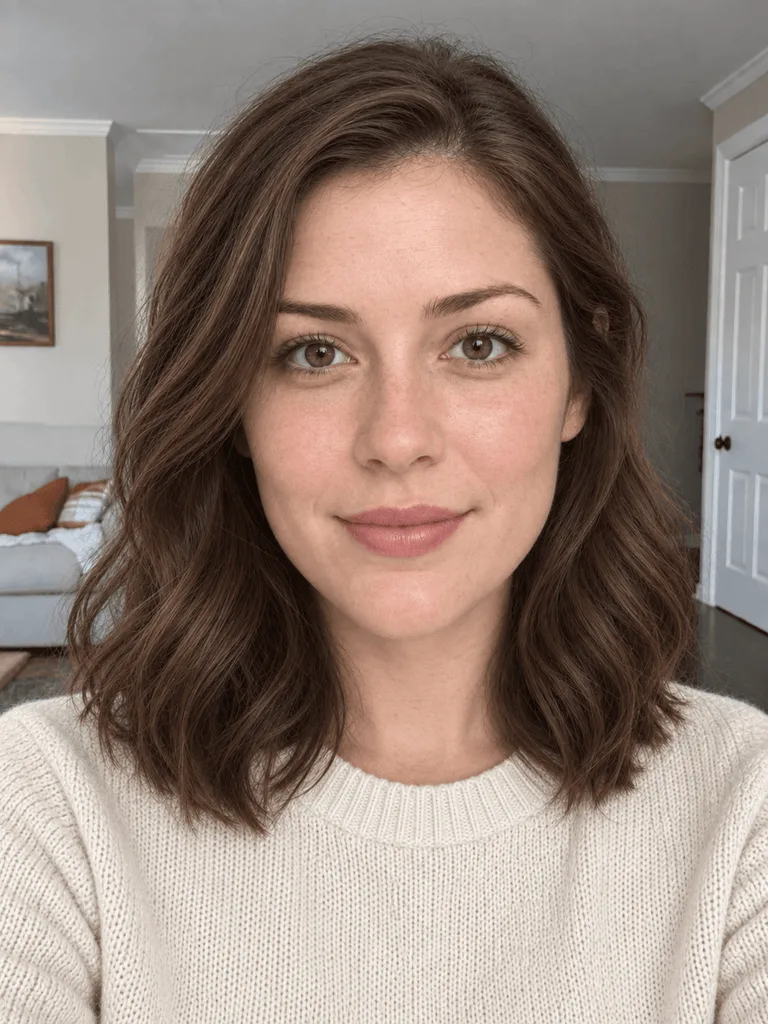
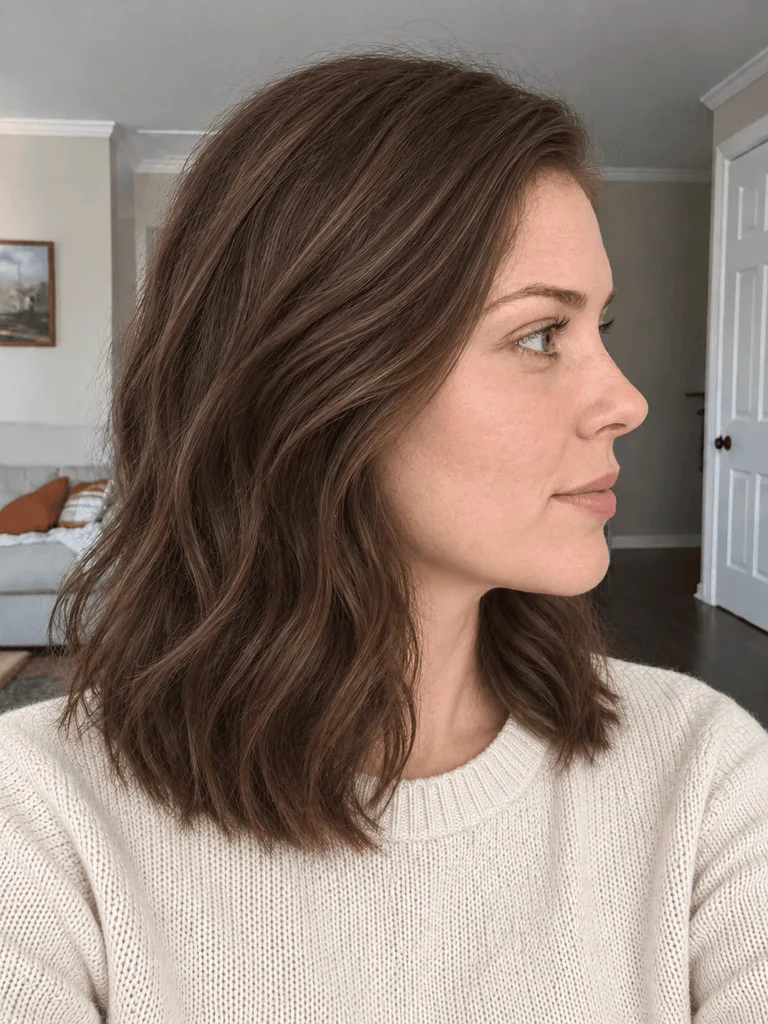
Use clear, even lighting
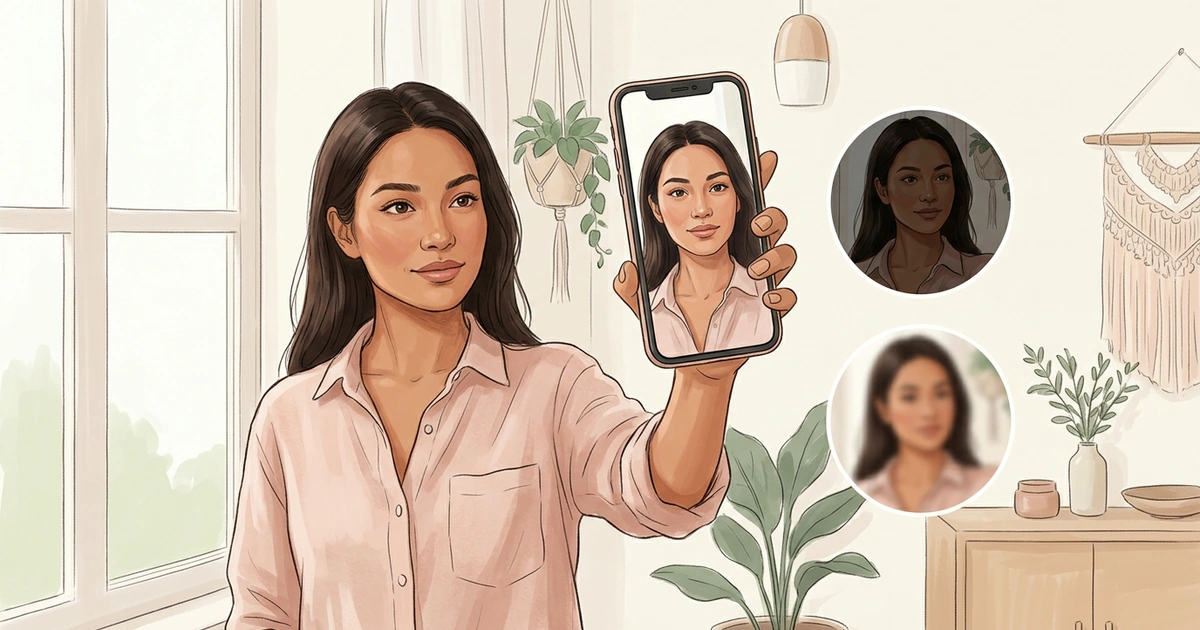
Choose a photo where your face is easy to see. Use soft, even lighting and avoid photos that are very dark, overexposed, or covered by strong shadows.
Check that your nose is in focus. A blurry photo can make its contours and smaller details harder to see.
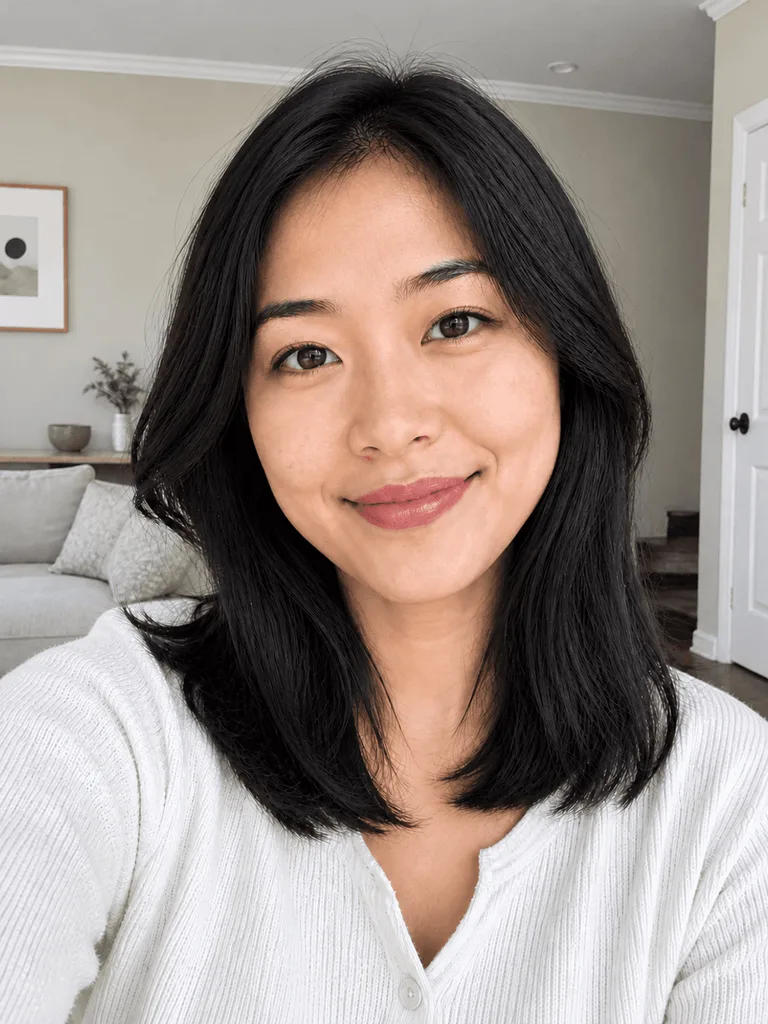
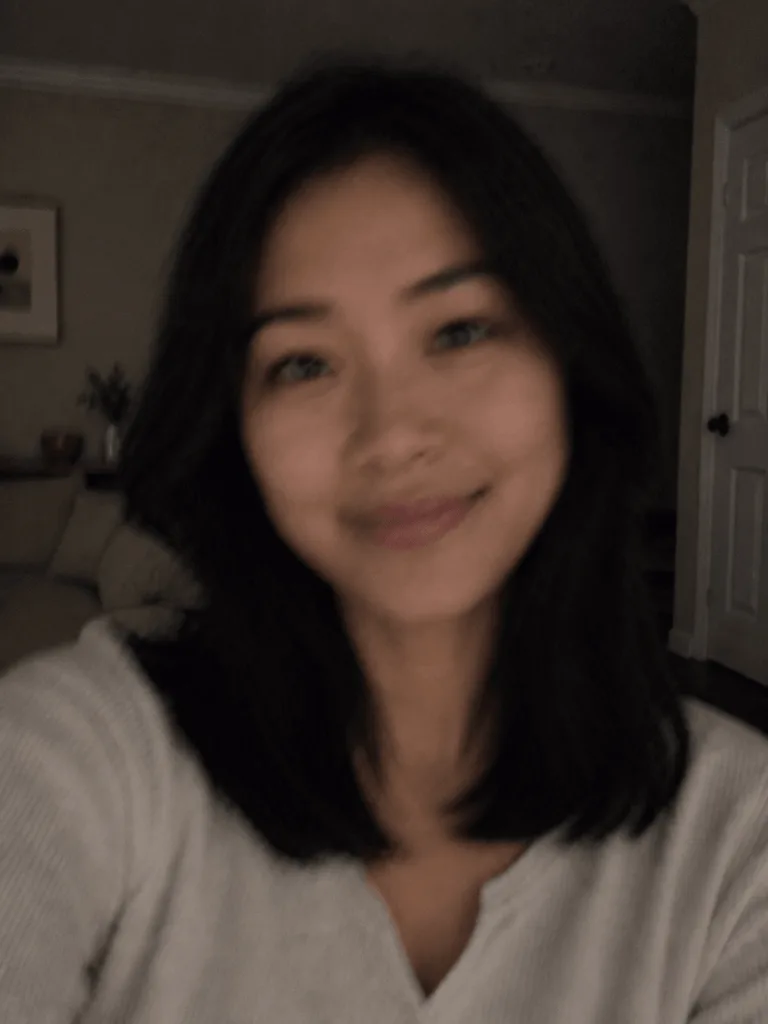
Take it from about 5 feet away
A camera held close makes your nose look bigger than it is, because it’s the part nearest the lens. Take your photo from about 5 feet away instead, with the rear camera on a timer at nose height, or ask a friend to take it.
Keep your chin level, and for a front photo, look straight into the lens.
Keep the photo simple
Use a photo with one person and keep your nose visible. Avoid anything that covers it, such as a hand or an accessory.
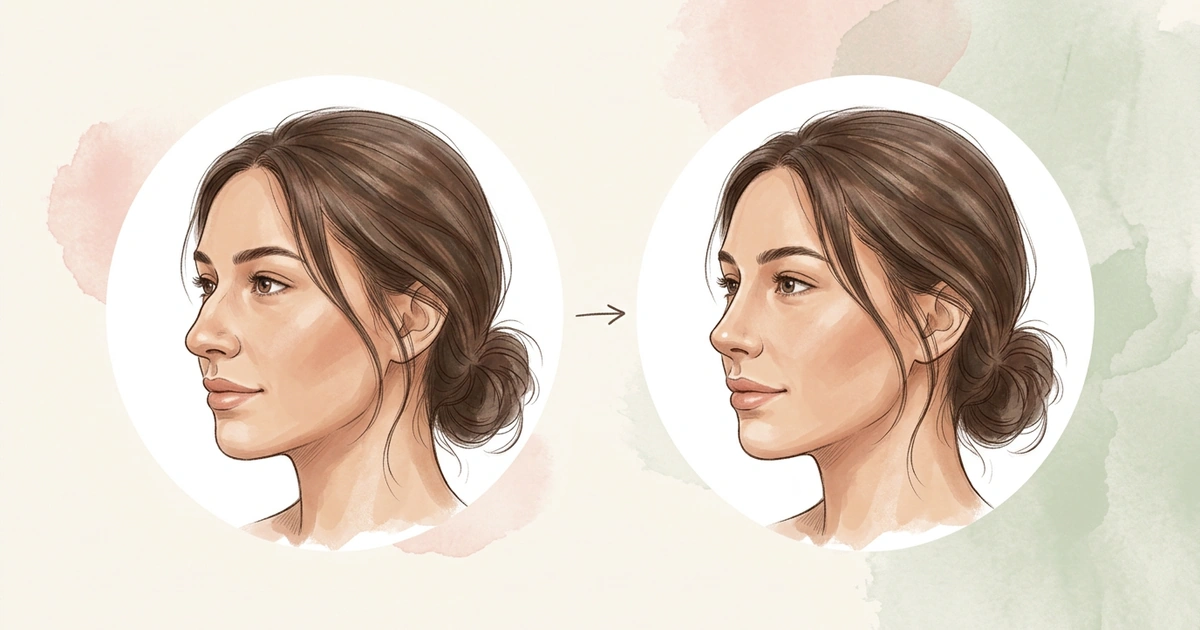
Choose a photo without heavy beauty filters or previous nose edits. An unedited photo gives you a clearer reference when comparing Before and After.
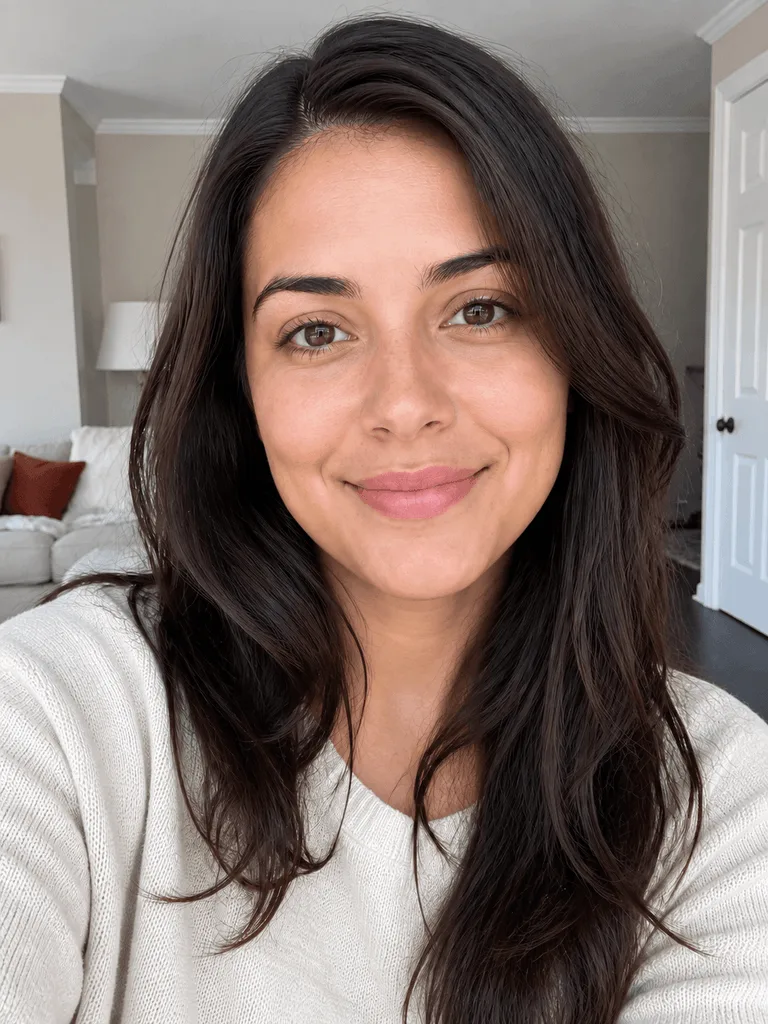

Check before uploading
Before uploading your photo, check:
- Does the angle match the example for this style?
- Is the photo clear and well lit?
- Was it taken from about 5 feet away?
- Is my nose fully visible?
- Is there only one person in the image?
Try another photo if needed
If your simulation seems unexpected, try another photo that follows the app’s photo examples more closely.
Frequently Asked Questions
What kind of photo works best for a nose job simulation?
A clear, well-lit photo of one person, with your nose fully visible and in focus. Use the angle the style asks for: front-facing for Symmetric and Slim Bridge, and side or angled for Button, Upturned, Roman, Greek, Defined Tip and Sloped. Skip heavy filters and photos with earlier nose edits.
Can I use a selfie for a nose job simulation?
You can, but a close selfie makes your nose look wider than it is, and the simulation starts from whatever the photo shows. If you only have the front camera, hold it at arm’s length or farther, at nose height, so your nose isn’t the part nearest the lens.
Why does my simulation look unexpected?
Usually the photo is the reason: the angle doesn’t match the style’s example, the light is uneven, or something covers part of your nose. Check your photo against the style’s examples and try another one. Try another style also lets you reuse the same photo with a different style.
Is my photo stored after I make a simulation?
No. To make a simulation, your photo is sent to an AI processing service and deleted right after processing; it isn’t stored. The simulation itself is saved in History on your device, where you can delete it whenever you like.
See your new nose in seconds
Download NoseChic, try nose job simulation on your own photo, and find the nose that feels right.